A viewing link in their inbox.
Upload clips to Google Drive or Dropbox, then send a link through Gmail or another configured email account.
PhoneDrive / DropboxEmail link
Useful for larger videos. A shared folder can contain clips added later.
 EVIDENSEND FOR ANDROID
For everyday safety, travel, and high-risk situations where video needs to leave the phone quickly.
When you feel unsafe,tap the widget to start recording and sending.
In testing · Public Google Play release coming later
Android 10+ with compatible hardware. Delivery requires Premium, setup, permissions and a working connection.
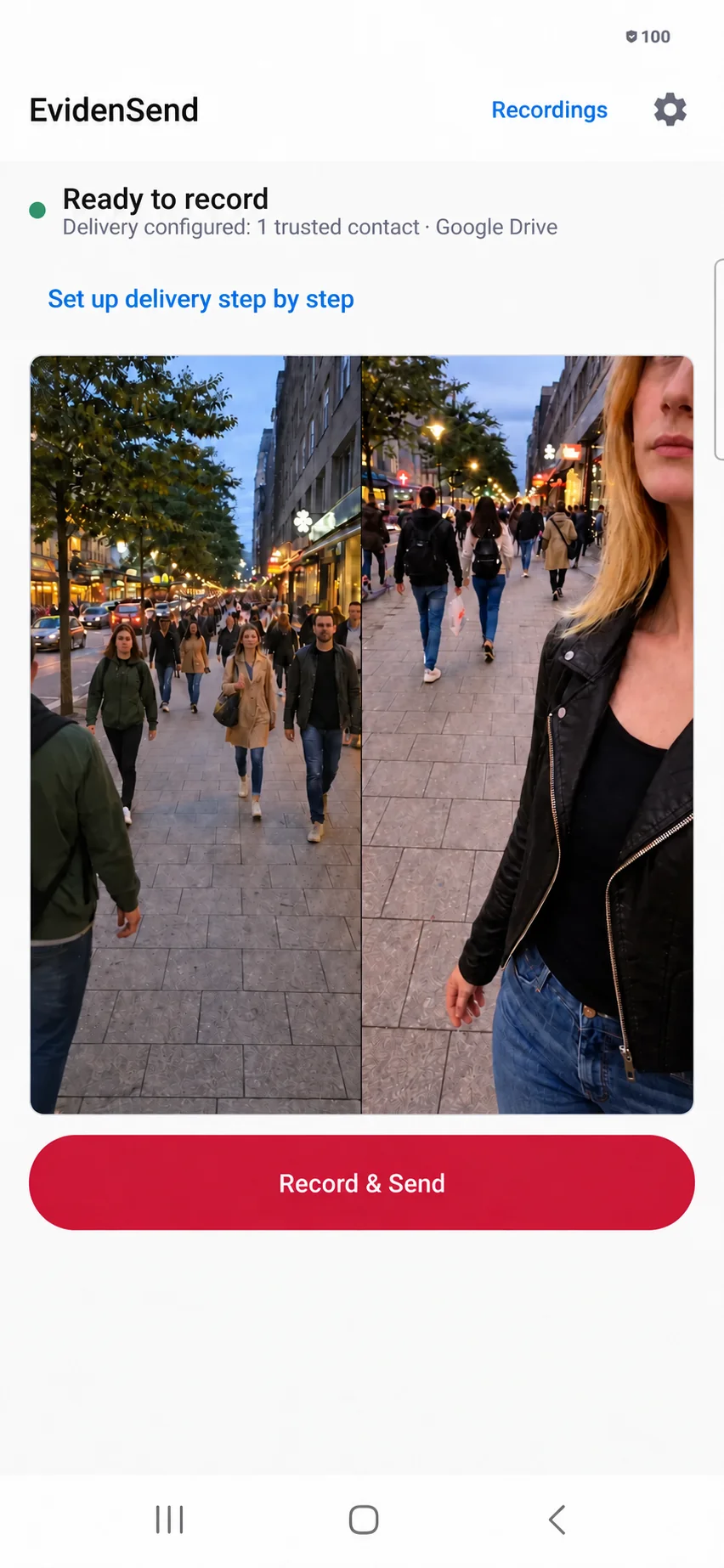
Completed clips are sent while you keep recording. Copies already delivered remain in your cloud account or with your recipients, even if you lose the phone.
Background: illustrative scenario. Camera coverage depends on your device.

On your Home Screen, touch and hold an empty area, then choose Widgets.

Search for EvidenSend. Select the widget with small Eviden above large SEND, then tap Add, or touch and hold it to drag it onto your Home Screen.

If SEND appeared on another Home screen page, touch and hold it, then drag it to the first page. Move an icon first if there is no room. Adding the widget does not start recording. Tapping SEND afterwards does.
Phone illustrations showing the Android steps. Menus and placement vary by phone and Home Screen app. This widget is for the Home Screen.
See actual Android screen pictures and a short widget video. Ohje suomeksi.
Ready before the moment
Set up delivery in advance. When you choose Record & Send, EvidenSend records short video clips and starts configured delivery as those clips finish.
Use the app or the SEND Home Screen widget to begin a new recording and delivery session.
You start recording. Clips save on your phone, and Android shows a recording notification while recording is active.
Send video links or email attachments to your trusted recipients. Check the session’s delivery status in Recordings.

Everyday safety. Travel. High-risk situations.
Capture what is happening around you. On supported phones, the front camera records you while the rear camera records your surroundings. You decide when to start and who receives the video.
Delivery takes a working connection and completed clips. EvidenSend cannot guarantee that footage has left the phone before it is lost or taken, and it is not an emergency dispatch service.
Your accounts. Your recipients.
Gmail sends the email. Google Drive or Dropbox can hold the video. You can use them together, or send video attachments without cloud storage.
Upload clips to Google Drive or Dropbox, then send a link through Gmail or another configured email account.
Useful for larger videos. A shared folder can contain clips added later.
Select Email attachments only in guided setup. This switches off Drive and Dropbox uploads for that choice.
Large files may exceed your email provider’s limits. Cloud links are often more practical.
Add recipient addresses and tap Add and save email. Use a separate My email address for “Only to me”. Each new session keeps the recipient selection made when it starts.
Turn on Include a location link in email or recipient settings and allow location access. This option is off by default. When a recent location is ready as recording starts, its messages can include a map link. The recording screen tells you whether the location was included.
SMS link delivery depends on phone permissions and Google Play approval requirements. Public availability is not yet confirmed. Mobile service and carrier charges may apply.
Anyone with an accessible sharing link may be able to open or forward it. Deleting a local clip does not remove its uploaded copy. Read how your data is handled.

Guided setup
For Gmail and Drive, choose your Google account and review Google’s permission request. You do not need to find SMTP server names or create an email app password. Google may still ask you to sign in or verify your identity.
Open Start guided setup. Choose Drive, Dropbox or email attachments only. Delivery setup requires Premium.
Enter each email address, then tap Add and save email or the keyboard’s Done action. Check that the address appears in the saved list.
Choose Gmail and approve sending permission. Drive has its own connection step. Other email providers use the advanced account settings.
Use an address you control for the setup test. Open its file or link, then make a short Record & Send test and check the video and any map link.
Google has verified EvidenSend’s requested Gmail and Drive access. Gmail sends email; Drive stores video for viewing links. Connect each service you plan to use, review Google’s permission screen, and test with your own address. See the Drive setup steps and the Gmail permission guide for the sending-access choice that is easy to miss. If connection fails or access is blocked, use the Android help guide or contact support.
Know your recording modes
New installations default to Automatic. It tries front and rear together when supported, preferring the widest available rear view. Otherwise it falls back to an available rear camera.
Existing camera choices are kept. Ultra-wide and simultaneous recording depend on what the device exposes to the app.
Recording starts with your action in the app or widget. Android shows a recording notification while it is active. Return to EvidenSend and tap Stop to end recording.
Battery restrictions, storage, temperature and device behavior can interrupt a recording. Test on your own phone.
Start with local recording. Delivery features require Premium, offered as a one-time in-app purchase.
The Android version is in testing. Availability and pricing will be shown in Google Play when publicly released.
Invited to test?
Android is currently in internal testing. Ask Pellabs for an invitation using the Google account you use in Play. There is no public download yet.
Open the test link with the invited Google account and install or update the ordinary EvidenSend app through Play.
Grant camera and microphone permissions and allow recording notifications. If you want map links, turn on Include a location link, allow location access, and check for Recent location ready before your test.
Review delivery choices and Premium access, then record a harmless short clip. Confirm the recipient gets the message and can open the video.
Test a short recording with the screen locked. Report your phone model, Android version, app version and the exact error if something fails.
No. Gmail sends messages; Drive stores video files. Use them together to email viewing links, or choose Email attachments only to send files without Drive or Dropbox. Selecting cloud storage does not necessarily disable an existing attachment setting, so review the email options too.
The app requests permission to send email and identify your email address. It does not request inbox reading, mail searching or message deletion. Drive access is limited to the specific files used with this app. Google connections need compatible Google Play services.
No. Concurrent front and rear recording and ultra-wide access depend on your phone. Automatic tries supported combinations and can fall back to a rear camera. Check the actual recording on your device.
A recording you start can continue through Android’s foreground recording service, including when the screen is locked. Android shows a recording notification; this is not a hidden recording mode. Permissions, battery restrictions and device behavior can affect it, so test your own phone. Open EvidenSend and tap Stop to finish.
Pending delivery information survives app restarts, and retryable failures can be tried again. Some failures need you to reconnect an account or review the session’s delivery status. An uncertain result does not mean nothing was sent; reviewing or repeating it may result in another message.
No. Pending delivery can continue after recording stops. Messages already accepted by an email provider cannot be recalled. An accepted submission also does not by itself confirm inbox receipt.
No. Location sharing must be on, location permission must be granted, and a recent position must be available when recording starts. Recording starts immediately even if no location is ready. That session then has no map link; a later position is not added to its messages. The map may be approximate. Check it during your own test.
The purpose is shared, but camera modes, widgets, cloud services and background behavior differ. The setup image shows the Android app. The widget instructions use phone illustrations. The scene phone illustrations use scene stills adapted from the iPhone page; they are not recordings of those events made with Android. Explore the iPhone version.
EvidenSend for Android
Choose the people you trust, test delivery, and keep SEND on your Home Screen.